
Use secret keyboard keys on Linux: Use secret keyboard keys on Linux Seth Kenlon Thu, 07/07/2022 – 03:00
A typical computer keyboard has only about 100 keys on it.
Most keys double up on characters, also called glyphs, thanks to the Shift key. Glyphs are frequently used to type letters with accents and umlauts, to produce characters used in mathematic or monetary expressions, or just to add fun emojis. In some regions there are even three glyphs available on select keys.
Regardless of your region, however, some glyphs don’t make it onto your keyboard. Fortunately, Linux provides access to these through a compose key.
There’s no compose key on your keyboard, at least not by default, but you can designate a key you’re not otherwise using as your compose key. I use the Alt key to the right of the spacebar on my desktop keyboard and the Menu key on my laptop.
[ Download the cheat sheet: Linux compose key ]
Setting a Compose key in GNOME
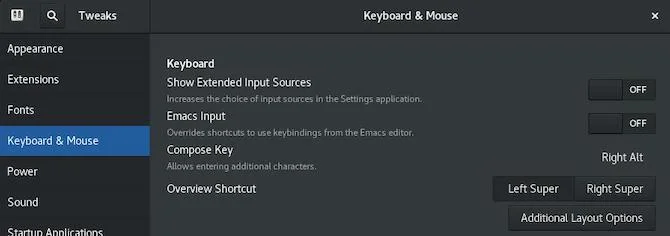
(Seth Kenlon, CC BY-SA 4.0)
On the GNOME desktop, install the Tweaks application from your software repository. You can also install it from a terminal (use apt for Debian-based distributions, dnf for Fedora and similar):
$ sudo dnf install gnome-tweaks
After you launch Tweaks:
- Click on the Keyboard & Mouse category in the left column.
- Locate the Compose key setting and choose a key to designate.
- Close Tweaks.
Setting a Compose key in KDE Plasma Desktop
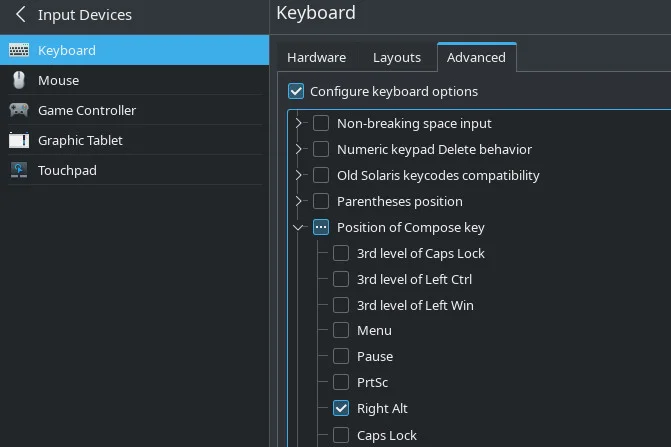
(Seth Kenlon, CC BY-SA 4.0)
On the KDE Plasma Desktop, open System Settings and navigate to the Input Devices control panel. Then:
- In the Input Devices panel, click the Advanced tab.
- Find the Compose key list item and choose a key to designate.
- Click the Apply button in the bottom right corner of the window and then close System Settings.
Using compose sequences
To enter a hidden character, press the compose key and then release it. You’re now in compose mode. While in compose mode, you can press and release one key and then another to combine characters.
For instance:
- Press the compose key and release it. You are now in compose mode.
- Press an apostrophe (‘) and then release it.
- Press the letter E and then release it. This is a valid combination, so you are now out of compose mode.
You’ve just typed the letter É!
Some compose sequences are a combination of just two keys, while others require three keys, and at least one special glyph uses a series of four key presses.
The secret glyphs
It’s a small world, so there’s a good chance you’ve got friends whose names use glyphs that aren’t native to your keyboard. You can now stop skipping over diacritics and type names using the appropriate modifiers.
Here’s a sample list of compose sequences for common diacritics:
- ‘ + <letter> = á é í ó ú ? ? ý j?? ? ?
- ` + <letter> = à è ì ò ù ? ? ?
- ~ + <letter> = ã ? ? õ ? ñ ?
- ^ + <letter> = â ê î ô û ? ? ? ? ?
- u + <letter> = ? ? ? ? ?
- c + c = ?
- – + <letter> = ? ? ? ? ? ?
- , + <letter> = ? ? ? ? ? ç ? ?
That’s not a complete list, but it covers a lot of the common ones.
Currency
International banking gets a little easier thanks to the compose key, too:
- – + Y = ¥
- – + L = £
- = + E = €
- = + L = ?
- = + N = ?
- = + R = ?
- = + W = ?
- / + m = ?
- R + s = ?
- C + r = ?
- F + r = ?
Once again, that’s not a complete list, but it’s a good start.
Fun glyphs
Diacritics and currency are useful, but the compose key can be used just for fun, too.
- < + 3 = ?
- < + > = ?
- # + q = ?
- : + ) = ?
- : + ( = ?
- p + o + o = ?
Live long and prosper
My favorite “secret” glyph in Linux is the traditional Vulcan salutation, “Live long and prosper.”
- L + L + A + P = ?
Finding all the glyphs
There are many more glyphs available through the compose key, and you can have fun discovering new ones by pressing random compose sequences. A more methodical method for finding glyphs is to refer to the Compose file, located in /usr/share/X11/locale/en_US.UTF-8 (adjust the exact path depending on the locale your keyboard uses).
That file can admittedly be overwhelming, as it consists of over 6,000 lines of compose sequences, many of which are complex combinations of ASCII and Unicode. For a quick and easy reference of common and foundational sequences, you can download our compose key cheat sheet. It provides sequences covering mathematics, typography, music, arrows, diacritics, currency, and more.
Now that you’re in on the secret, your range of expression just got a whole lot bigger.
With a compose key, you're not limited to what's on your keyboard. Download the cheat sheet.

 This work is licensed under a Creative Commons Attribution-Share Alike 4.0 International License.
: Opensource.com Seth Kenlon
Supporting Open Source.
Have you tried: Travelling to South Africa?