
How I use Ansible to add a feature to my Linux KDE desktop: How I use Ansible to add a feature to my Linux KDE desktop sethkenlon Wed, 02/15/2023 – 03:00
I run the KDE Plasma Desktop on my computer because it’s a flexible environment with lots of options for customization. Having choices in your desktop is about more than just having lots of menus and buttons to activate or deactivate. The thing I love most about KDE Plasma Desktop is the ability to add my own features to it. One reason this is possible is KServices, a simple but powerful plugin framework for handling desktop services.
Add functions to the right-click menu
In the KDE Plasma Desktop, there’s usually a contextual menu available when you right-click on something, such as a directory or a file. You can add items to the right-click menu by creating your own KService, and you don’t need anything more than a rudimentary understanding of Bash to make it work.
First, create a new directory for your service menu:
$ mkdir -p ~/.local/share/kio/servicemenus
Add a .desktop file:
$ touch ~/.local/share/kio/servicemenus/hello.desktop
Open the hello.desktop file in a text editor. A .desktop file is a small configuration file used by the menu system of the Linux desktop. Here’s a simple KServices file that generates a hello.txt file in the directory you select:
[Desktop Entry] Type=Service MimeType=inode/directory; Actions=Hello [Desktop Action Hello] Name=Say hello Icon=/usr/share/icons/breeze-dark/actions/symbolic/file-library-symbolic.svg Exec=touch %f/hello.txt
-
The first configuration block tells your system that this
.desktopfile is a service rather than, for instance, an application. -
The
MimeTypetells the Plasma Desktop to only show this action as an option when you right-click on a folder, not a file. -
The
Actionsline identifies what action is taken when this service is activated. The nameHellois arbitrary, and refers to the next configuration block, which is aDesktop Actionconfiguration with the nameHello.
Here’s what the next configuration block means:
-
The
Desktop Actiondefinition namedHello. -
The values for
NameandIconappear in the right-click menu. -
The
Execline is the command you want to run when your service is selected. As a simple demonstration, this.desktopfile just creates an empty file calledhello.txtin the location that you right-clicked on (represented by the special variable%f).
Save the .desktop file, and then make it executable:
$ chmod +x ~/.local/share/kio/servicemenus/hello.desktop
Start a new instance of the Dolphin file manager and create an empty folder. Then right-click on the folder and navigate to Actions. In the Actions menu, there’s a new service available, and it’s called Say hello because that’s what your .desktop file has set in the Name field.
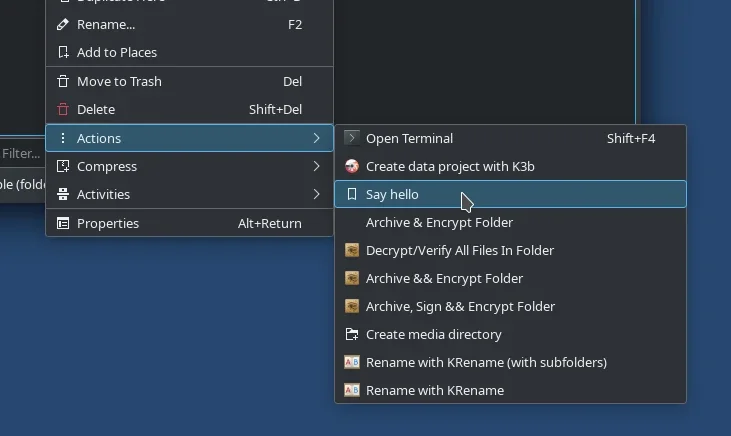
(Seth Kenlon, CC BY-SA 4.0)
Look in the folder after running the service to see the empty hello.txt file that’s been created.
Mimetypes
This sample KService only works on directories because the .desktop file defining the service specifies the Mimetype: inode/directory. That’s what tells Dolphin not to display the service when you right-click on a file.
Using mimetypes, you can create highly specific services based on what kind of file system object you select when you right-click. The perl-file-mimeinfo package provides a mimetype command, which you can use to get the mimetype of any file. Install it with your distribution’s package manager, and then try it out:
$ mimetype example.txt example.txt: text/plain $ mimetype Photos/example.webp Photos/example.webp: image/webp
Executables
I demonstrated a simple “hello world” example in this article, but KServices can be as complex as you need them to be. The Exec line of your KService .desktop file can launch any application or script, and the %f variable ensures that the target or destination of whatever gets launched is what you’ve right-clicked on.
For my own workflow, I used to use Planter to quickly construct a project environment. Lately, though, I’ve switched to Ansible and this KService:
[Desktop Entry] Type=Service MimeType=inode/directory; Actions=planter [Desktop Action planter] Name=Create project directory Icon=/usr/share/icons/breeze-dark/actions/symbolic/folder-new-symbolic.svg Exec=ansible-playbook /home/seth/Ansible/playbooks/standard_dirs.yaml -e dir=%f
Here’s my Ansible playbook:
--- - hosts: localhost tasks: - name: Create directories ansible.builtin.file: path: "{{ item }}" state: directory with_items: - '{{ dir }}/video' - '{{ dir }}/edit' - '{{ dir }}/audio' - '{{ dir }}/title' - '{{ dir }}/render' - '{{ dir }}/graphic' - '{{ dir }}/photo'
When I right-click on a directory and select Create project directory, the subdirectories I need for media projects are added to that directory. It’s a simple feature for a desktop, and a little unique to a specific workflow, but it’s the feature I want. And thanks to KServices, it’s a feature I have. Try out KServices in the KDE Plasma Desktop for yourself, and add the feature you want.
Follow this tutorial to see how I use KService and Ansible on my Linux KDE desktop.

 This work is licensed under a Creative Commons Attribution-Share Alike 4.0 International License.
: Opensource.com sethkenlon
Supporting Open Source.
Have you tried: Farking?