
Use open source commands in Powershell: Use open source commands in Powershell Alan Smithee Sat, 10/22/2022 – 03:00
When you launch an application on an operating system, there are certain code libraries and utility applications that your OS needs to use for that app to run. Your OS knows how to find these libraries and utilities because it has a system path, a map to common shared data that lots of apps need. Every OS has this, but users aren’t usually aware of it because they don’t usually need to care about it. However, when you start coding or using special network utilities or commands, you might care about your own PATH variable.
The PATH variable makes it so that you can save commands to a consistent location, and use them from anywhere on your system using the command prompt or the more powerful (and open source) Powershell.
For instance, say you want to install the open source application pscp.exe, a command-line interface to the famous PuTTY OpenSSH client on Windows. You can download it to your hard drive, but how does your command-line know that it exists? Well at first, it doesn’t:
 PS> pscp
 pscp: The term 'pscp' is not recognized as the name of a cmdlet, script file, or operable program.
 Check the spelling of the name, or if a path was included, verify that the path is correct and try again.
If you’re using an open source command line, such as Powershell or Cmder, you get a useful error hinting that this might be a problem with your path (or the lack thereof). Here’s how to solve that problem.
Setting a PATH
-
First, create a folder called
Appon your Desktop. -
Next, right-click on the Windows menu in the bottom left corner of your screen, and select System.
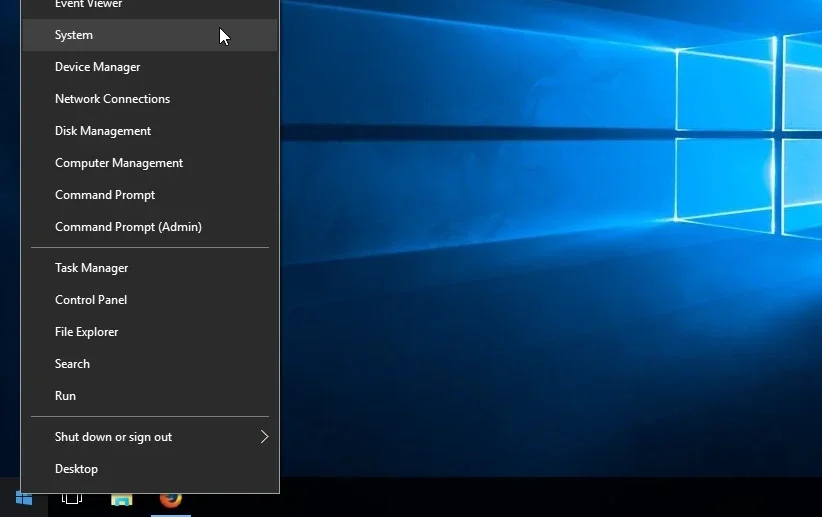
(Alan Smithee, CC BY-SA 4.0)
-
In the System window that appears, click the link to Advanced system settings on the left of the window.
-
In the System properties window that appears, click the Environment variables button at the bottom of the window.
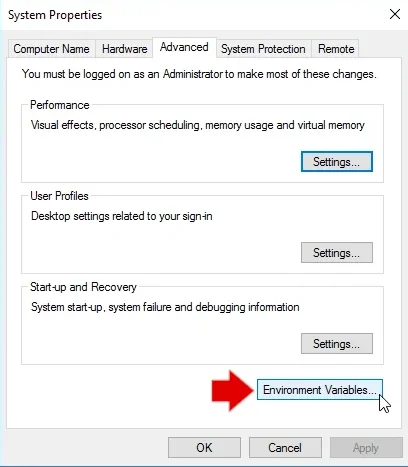
(Alan Smithee, CC BY-SA 4.0)
- In the Environment variables window, click the New button under the User variables panel.
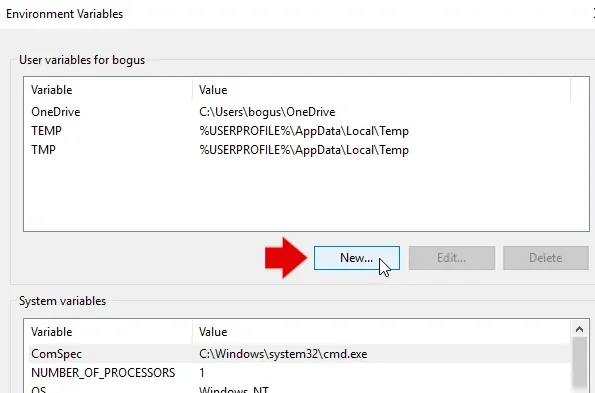
(Alan Smithee, CC BY-SA 4.0)
- In the dialog box that appears, enter
PATHfor the Variable name field, and%USERPROFILE\Desktop\Appfor the Variable value field. Click the OK button to save your changes.
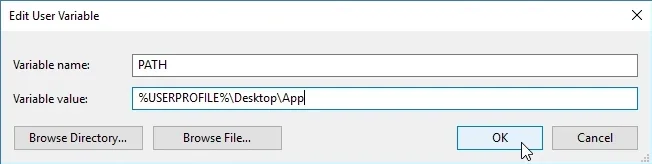
(Alan Smithee, CC BY-SA 4.0)
Place commands and applications you want to have access to from a command prompt in Desktop\Apps and Powershell, Cmder, and even Cmd will find them:
 PS> pscp –version
 pscp: Release 0.XY
 Build platform: 64-bit x86 Windows
 PS>
Automatic PATH settings
Many applications get automatically added to the system path during installation. However, not all of them do, either because you missed a check box during the install process, or because the application developer expects you to add it yourself. When automatic paths fail, you now know how to forge your own path.
Set your path on Windows so you can use open source commands.

Opensource.com
 This work is licensed under a Creative Commons Attribution-Share Alike 4.0 International License.
: Opensource.com Alan Smithee
Supporting Open Source.
Have you tried: Travelling to South Africa?