
Try this Python-based file manager on Linux: Try this Python-based file manager on Linux sethkenlon Sun, 12/18/2022 – 03:00
Dragonfly Navigator is a general-purpose file manager written in Python and Qt. It’s easy to install, easy to use, and a great example of what Python can do.
Python is a popular language for several reasons, but I think one of its primary strengths is that it’s equally useful to beginner-level programmers and to experienced coders. There’s something exciting about a language you can take from drawing basic geometric shapes to scraping the web to programming a zombie apocalypse video game, or writing desktop applications you can use every day. And that’s what Dragonfly Navigator is: a desktop utility that everyone can use.
Installing Dragonfly Navigator
To install Dragonfly Navigator, first download the source code from its Git repository. If you’re on Debian Linux or similar, download the .deb file. If you’re using Fedora, CentOS, Mageia, OpenMandriva, or similar, then download the .tar.gz file.
Dragonfly Navigator has a few dependencies. Because you aren’t installing it through your package manager, it’s up to you to resolve those. There are just two, so use your package manager (dnf or apt) to find and install them:
-
PyQt5, also called
python-qt5 -
Python PIL, also called
pillow
Launching Dragonfly Navigator
To launch Dragonfly Navigator, either install the .deb file (on Debian-based systems) or unarchive the .tar.gz file:
$ tar xvf dragonfly*gz
On Debian-based systems, Dragonfly Navigator appears in your application menu. ON other systems, you must launch it manually unless you manually install it.
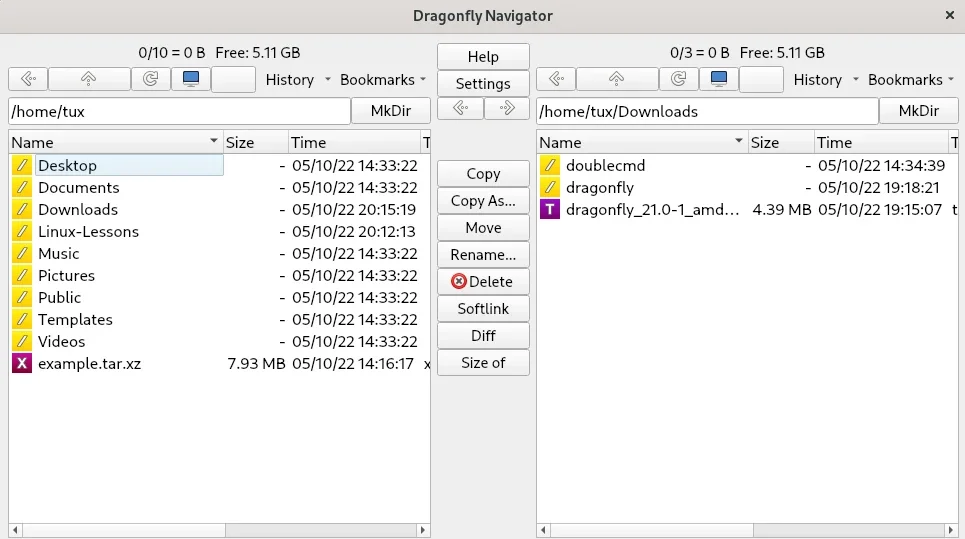
For now, I’m not installing it, so I launch it manually:
 $   cd dragonfly
 $   ./dragonfly
(Seth Kenlon, CC BY-SA 4.0)
Dual pane
Dragonfly Navigator is a two-panel file manager, meaning that it’s always showing you two directories. At launch, both directories happen to be your home directory. You can browse through files and folders in either panel. They function exactly the same, and it only matters which panel you’re “in” when you start copying or moving files.
Open a directory
To open a directory, double-click it. By default, the directory opens in that same pane. If you want to utilize the two-panel layout, though, hold down the Ctrl key as you double-click to display its contents in the other panel.
Open a file
To open a file, double-click or right-click on it.
Yes, you can right-click a file to open it. That takes some getting used to, if you’re used to a right-click bringing up a contextual menu. There is no contextual menu in Dragonfly Navigator, though, and you might be surprised at how much time you feel like you’re saving yourself when you reduce the very common action of opening a file to just one click. It may seem silly now, but trust me you’ll grow to cherish it.
Quick preview
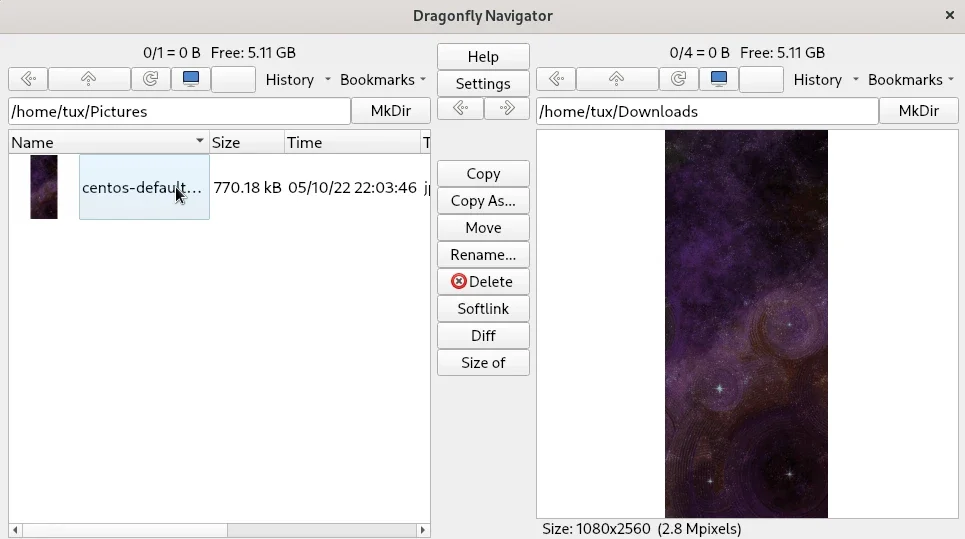
Some files are available for a quick preview so you don’t have to open them in any particular application. To preview a file, hover your mouse over it and press the Alt key on your keyboard. A preview appears in the opposite panel.
(Seth Kenlon, CC BY-SA 4.0)
Copying and moving files
To copy or move a file from one directory to another (or a directory to a directory), there are a few steps.
-
In one panel, navigate to the destination directory. This is the location you want to copy a file to.
-
In the other panel, select the file you want to copy.
-
Click the Copy button in the middle strip of Dragonfly Navigator.
For moving a file, follow the same steps but click the Move button instead.
If you’re not used to a dual-panel file manager, this feels unfamiliar at first. But if you think about it, there are several steps required to copy a file in your usual file manager (find the file, open another window, drag-and-drop, and so on.) After you do it a few times, it becomes second nature.
Selecting files
Normally, you click a file or folder to make it your active selection. That’s probably no different than your current file manager, or at least to some file manager you’ve used in the past.
To select multiple items in a range, click one file, and then hold the Shift key and click another file. All items between the two files you clicked are also selected.
To select multiple arbitrary files, hold the Ctrl key and click on the files you want selected.
The power of Qt and Python
The Qt toolkit is a powerful programming utility, and Python is capable of creating great applications with it. I’ve only covered the basics of Dragonfly Navigator in this article, so download it, read the docs, click around, explore it, and maybe you’ll have found a fun new file manager.
Dragonfly Navigator is a general-purpose file manager written in Python and Qt.

Yuko Honda on Flickr. CC BY-SA 2.0
 This work is licensed under a Creative Commons Attribution-Share Alike 4.0 International License.
: Opensource.com sethkenlon
Supporting Open Source.
Have you tried: Farking?