
Try this Linux web browser as your file manager: Try this Linux web browser as your file manager Seth Kenlon Tue, 12/13/2022 – 03:00
Konqueror is a file manager and web browser for the KDE Plasma Desktop. In many ways, Konqueror defined “network transparency,” as it applied to a personal desktop. With Konqueror, you can browse remote network files (including the Internet itself, which really is just a collection of remote files viewed through a fancy lens) just as easily as browsing your local files. Sometimes there was some configuration and setup required, depending on what kind of file share you needed to access. But ultimately, the goal of having instant access to all the data you had permission to view was a reality with Konqueror in ways no other file manager had achieved. And at its peak, the open source web engine it developed (KHTML) was adopted by both Apple and Google, and lives on today as the core library of modern web browsing and, technically, Electron app development.
Today, the KDE Plasma Desktop lists Konqueror as a web browser. Officially, file management has shifted over to Dolphin, but Konqueror is still capable of doing the job. For the full and classic Konqueror experience, you should try the Plasma Desktop 3.x fork TDE, but in this article I use Konqueror in KDE Plasma Desktop version 5.
Install Konqueror
If you’re running KDE Plasma Desktop already, you may already have Konqueror installed. If not, you can install it from your distribution’s software repository. On Fedora, CentOS, Mageia, OpenMandriva, and similar:
$ sudo dnf install -y konqueror konqueror-plugins
On Debian, Linux Mint, Elementary, and similar:
$ sudo apt install -y konqueror konqueror-plugins
(Seth Kenlon, CC BY-SA 4.0)
Configure Konqueror as a file manager
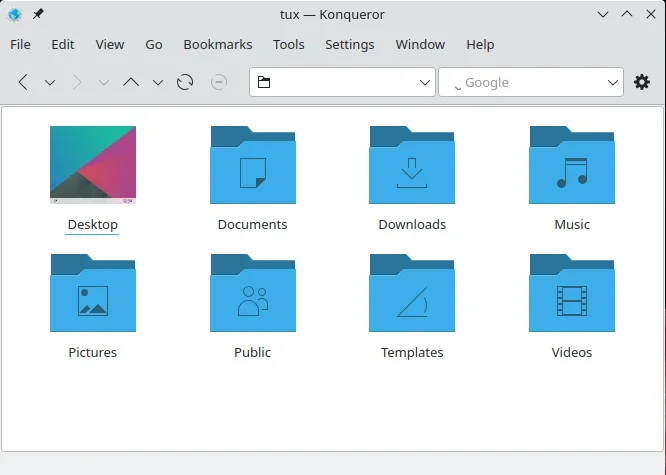
The most convenient feature of Konqueror is that it’s a web browser in addition to being a file manager. Or at least, that’s theoretically its most convenient feature. If you’re not using Konqueror as a web browser, then you may not want the URL field or the search engine field at the top of every file manager window.
As with most KDE applications, Konqueror is highly configurable. You can reposition and add and remove toolbars, add or remove buttons, and so on.
To adjust what toolbars are displayed, launch Konqueror and go to the Settings menu and select Toolbars Shown. The Main toolbar is probably all you really need for file management. It’s the toolbar with navigation buttons on it. However, you may not even need that, as long as you’re happy to navigate with keyboard shortcuts or using the Go menu.
Keyboard navigation in Konqueror is the same as in Dolphin:
-
Alt+Left arrow: Back one step
-
Alt+Up arrow: Move to parent directory
-
Alt+Home: Go to home directory
Side panel
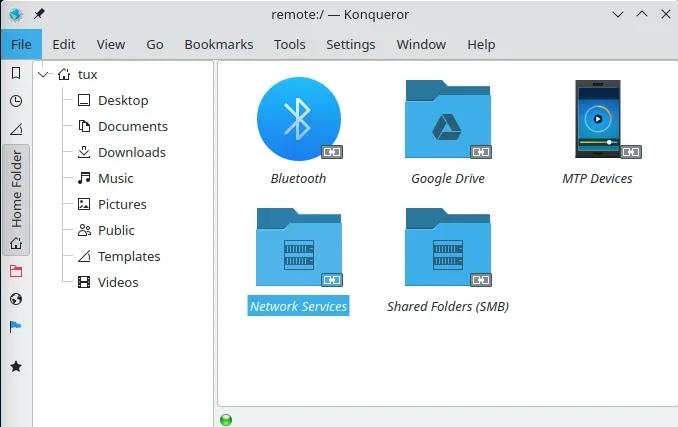
To get a side panel with a listing of common folders, press F9 or select Show Sidebar from the Settings menu. This adds a button bar along the left side of the Konqueror window. Click the Home icon to display a file tree of your home directory.
(Seth Kenlon, CC BY-SA 4.0)
As the button bar suggests, this side panel can serve many purposes. Instead of your home directory, you can display bookmarked locations, a history of recent locations you’ve visited, remote filesystems, and more.
Applications
Some people are used to an application menu. It’s efficient and quick, and always in the same place. Other people prefer to launch applications from the terminal.
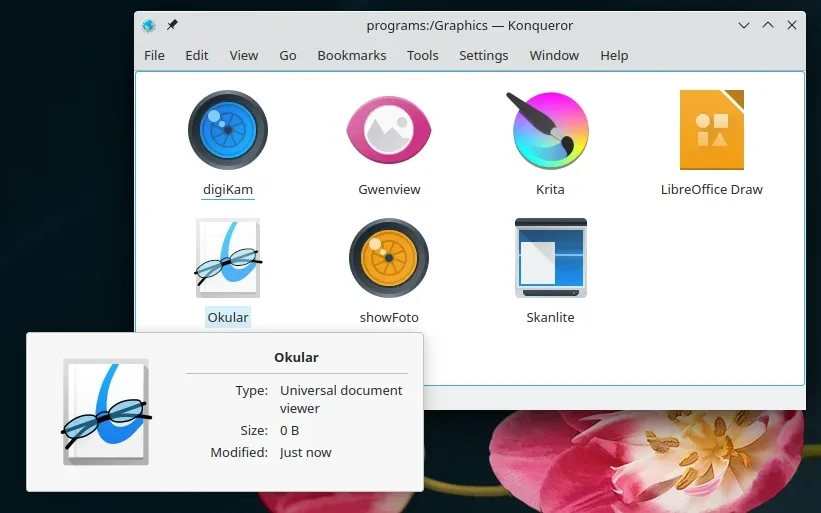
There’s yet another way to view application launchers, though. Konqueror’s Go menu allows you go to a meta location called Applications, which lists application launchers, by category, as files in a file manager.
(Seth Kenlon, CC BY-SA 4.0)
You can see this in Dolphin, too, by manually typing applications: in the location field, but of the two it’s Konqueror that provides a menu option to go there directly.
Network folders
Similarly, Konqueror also provides a menu selection to go to network folders. The greatest network folder of them all is the Internet, but Network Folders is the meta location for network protocols other than HTTP. Most remote locations require some setup because they usually require authentication to access. Most of them can be configured through System Settings, including file systems accessible over Bluetooth, SMB or CIFS, MTP devices, Fish (file system over SSH), and even Google Drive.
Split view
You can split the Konqueror window into panes, allowing you to see two folders at once without opening two windows. There are two split options: a vertical split with one pane on the left and the other on the right, or a horizontal split with one pane above the other.
To split the Konqueror window, go to the Window menu and select either Split View Left/Right or Spit View Top/Bottom. Each pane is independent of the other, so you can navigate around in one pane, and then drag and drop files from one to the other.
Conquering your file system
Konqueror isn’t just a file manager, and I don’t think the developers of the Plasma Desktop expect you to use it as your primary file manager. There’s even an option in the File menu to open a location in Dolphin, which indicates that Konqueror is a web browser with a file manager component. But that file manager component is a nice feature to have when you need it. And if you’re not a fan of all the features Dolphin offers, Konqueror could be a suitable alternative.
The KDE Plasma Desktop lists Konqueror as a web browser, but it is also a functional Linux file manager.

 This work is licensed under a Creative Commons Attribution-Share Alike 4.0 International License.
: Opensource.com Seth Kenlon
Supporting Open Source.
Have you tried: Farking?