
Travel back in time with the mc file manager on Linux: Travel back in time with the mc file manager on Linux sethkenlon Sat, 12/17/2022 – 03:00
In the late 1980s and throughout the 1990s, there was a popular file manager for DOS called Norton Commander. It was beloved by many computer users of the day, but it fell out of favor as graphical file managers became the default. Fortunately for fans of the original commander, and those who missed out on the original, an open source file manager with a similar design was released, called Midnight Commander or, more commonly, just mc.
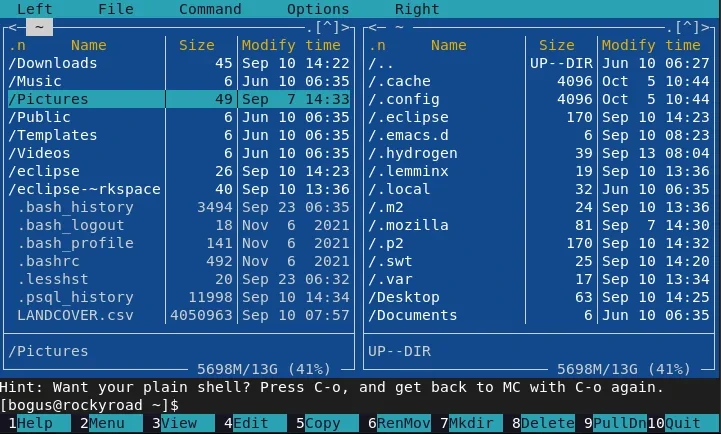
(Seth Kenlon, CC BY-SA 4.0)
The mc file manager exists in a terminal, but it feels like a modern keyboard-driven application with intuitive actions and easy navigation. It starts with an efficient design. Most file management tasks involve a source location and a destination, so it makes sense that your file manager has a persistent view of one location where your files are now and another location where you want your files to be. If you try it for a while, you do start to wonder why that’s not the default configuration of every file manager, especially when you consider how much wasted horizontal space there often is in the typical file listing.
3 essential commands for the mc file manager
There are only three things you need to know to get started with mc:
-
Tab switches between panels.
-
Arrows do what you think they do. Up and Down selects, Left goes back. The Right descends into the selected folder.
-
Ctrl+O (that’s the letter “o”, not the number zero) toggles between the
mcinterface and a full terminal.
Like GNU Nano, all the most common actions for mc are listed at the bottom of the terminal window. Each action is assigned to a Function key (F1 to F10,) and any action you perform applies to whatever you have currently selected in your active pane.
Using mc
Launch mc from a terminal:
$ mc
Your terminal is now the mc interface, and by default, it lists the contents of your current directory.
Open a file
One of the reasons you use a file manager is to find a file and then open it. Your desktop already has default applications set, and mc inherits these preferences (or most of them), so press Return to open a file in its default application. There are exceptions to mc’s behavior when opening a file. For instance, a text file doesn’t open by default in a graphical text editor, because mc instead expects you to use its internal editor (F4) instead. Images and videos and other binary files, however, default to your desktop settings.
Should you need to open a file in something other than its default application, press F2 and select Do something on the current file (or just press @) and type in the name of the application you prefer to launch.
For instance, say you have a file called zombie-apocalypse.txt and you want to edit it specifically in Emacs:
- Use the arrow keys to select
zombie-apocalypse.txt - Press F2 and then @
- Type
emacs
You don’t have to specify which file you want to open in Emacs, because mc runs the command you type on the file you have selected.
Copy or move a file
To copy or move a file, select it from the file list and press the F5 key. By default, mc prompts you to copy (or move) your active selection from to the location shown in the non-active panel. A dialogue box is provided, though, so you can manually enter either the source or the destination if you change your mind after starting the operation.
Selecting files
Your current position in a file list is also your current and active selection. To select more than one file at a time, press the Shift key and move your selection up or down the files you want to include in your selection. Items in your selection are indicated with a color different from the other files listed. What color mc uses depends on your color scheme.
You can deselect just one file from the middle of a selected block by moving to that item and pressing Shift and Up or Down.
Menu
There are just ten actions listed at the bottom of the mc interface, but it can do a lot more than that. Press F9 to activate the top menu, using the arrow keys to navigate each menu. From the File menu, for instance, you can create symlinks, change file modes and permissions, create new directories, and more.
Additionally, you can press F2 on any selection for a contextual menu, allowing you to create compressed archives, append a file to another one, view man pages, copy files to a remote host, and more.
Cancel an action
When you find yourself backed into a corner and in need of a panic button, use the Esc key.
Install mc
On Linux, you’re likely to find mc in your Linux distribution’s software repository. On Fedora, CentOS, Mageia, OpenMandriva, and similar:
$ sudo dnf install mc
On Debian and Debian-based systems:
$ sudo apt install mc
On macOS, use Homebrew or MacPort.
Take mc for spin. You might discover a new favorite way to use your Linux terminal!
The Midnight Commander file manager exists in a Linux terminal, but it feels like a modern keyboard-driven application with intuitive actions and easy navigation.

 This work is licensed under a Creative Commons Attribution-Share Alike 4.0 International License.
: Opensource.com sethkenlon
Supporting Open Source.
Have you tried: Visiting Port Elizabeth?