
Transfer files and folders from Windows to Linux with WinSCP: Transfer files and folders from Windows to Linux with WinSCP Paul Tue, 11/01/2022 – 03:00
Sometimes you need to transfer files over a network. There are lots of file sharing services out there, but most require that you send your file to the Internet. This seems like a long way to go (not to mention the privacy concerns) when two computers are right beside each other, or at least in the same building. The open source WinSCP utility makes it quick and easy to transfer a file or a folder of files over the network from your Windows computer to your Linux computer.
IP address
Before you can make the transfer, you must know the IP address or fully-qualified domain name of the destination computer. Assuming it’s a computer on your same network, and that you’re not running a DNS server to resolve computer names, you can find the destination IP address using the ip command on the Linux machine:
 [linux]$   ip addr show | grep 'inet '
 inet 127.0.0.1/8 scope host lo
 inet 192.168.1.23/24 brd 10.0.1.255 scope global noprefixroute eth0
In all cases, 127.0.0.1 is a loopback address that the computer uses only to talk to itself, so in this example the correct address is 192.168.1.23. On your system, the IP address is likely to be different. If you’re not sure which is which, you can try each one in succession until you get the right one (and then write it down somewhere!)
Alternatively, you can look in your router’s settings, which list all addresses assigned over DHCP.
Firewalls and servers
The WinSCP command uses the OpenSSH protocol, so your Linux computer must be running the OpenSSH server software, and its firewall must allow SSH traffic.
If you’re not sure whether your Linux machine is running SSH, then run this command on the Linux machine:
[linux]$ sudo systemctl enable --now sshd
To ensure your firewall allows SSH traffic, run this command:
[linux]$ sudo firewall-cmd --add-service ssh --permanent
For more information on firewalls on Linux, read Make Linux stronger with firewalls.
Using WinSCP
WinSCP is an open source SSH file transfer application for Microsoft Windows. To use it, you first must download and install it.
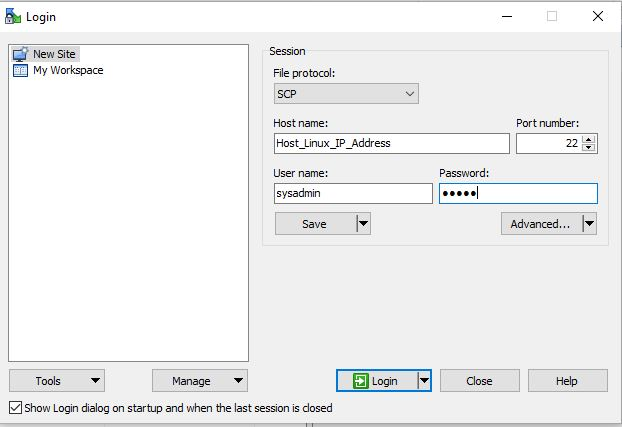
Once you’re installed it, open WinSCP and select the SCP option in the File Protocol field.
Add the IP address or DNS name of your Linux computer in the Host name field, and enter 22 in the Port number field. Enter you user name and password for the Linux computer, and then click the Login button at the bottom of the WinSCP window.
(Paul Laubscher, CC BY-SA 4.0)
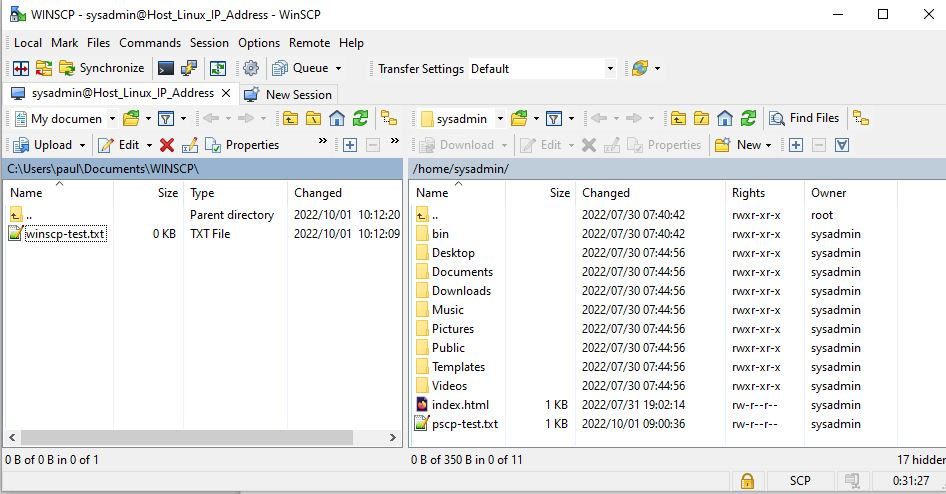
Verify that you are authenticated to the Linux computer. Upon success, your Linux computer’s IP address or DNS name appears at the top of the window.

(Paul Laubscher, CC BY-SA 4.0)
Now you can drag and drop a file (I used winscp-test.txt as an example) from the left Windows pane to the destination Linux computer pane on the right, and the file transfers.
(Paul Laubscher, CC BY-SA 4.0)
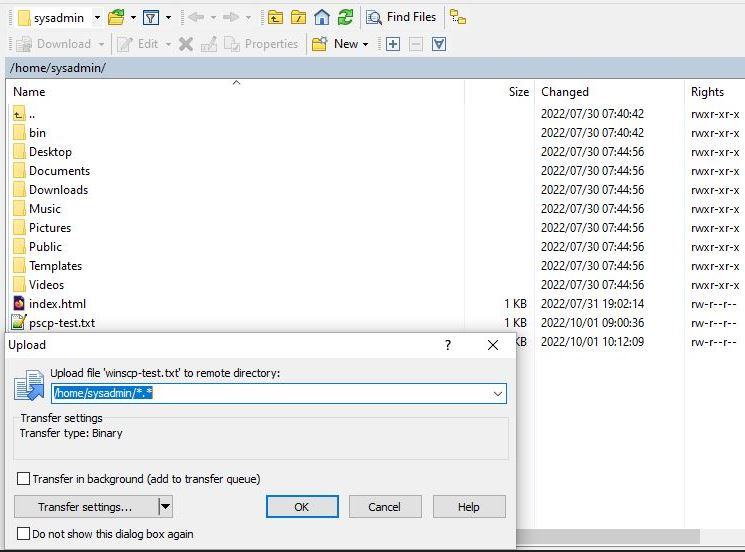
Alternatively, you can right-click on a file in the left pane and upload it to the remote destination in the right pane.
(Paul Laubscher, CC BY-SA 4.0)
Verify the copy
Open a Linux terminal and use the ls command to view the transferred winscp-test.txt file. In my example, it appears in my home directory, /_home_/sysadmin.
 $   ls
 Desktop
 Documents
 Downloads
 Music
 Pictures
 pscp-test.txt
[...]
You’ve successfully transferred a file from a Windows computer to a Linux computer over the network!
Of course, you can use the same technique as above to transfer files and folders from a Linux computer to a Windows computer.
Remote copying
With the power of the open source WinSCP application, you have access to any computer in your house or workplace, to servers you have accounts on, and even mobile, edge, and Internet of Things devices. Use this great tool to transfer files as easily as you would copy a file from one local directory to another!
If you're looking for a way to quickly transfer files from your Windows computer to your Linux computer, then the open source WinSCP utility makes it easy to transfer a file or a folder of files over the network.

Opensource.com
 This work is licensed under a Creative Commons Attribution-Share Alike 4.0 International License.
: Opensource.com Paul
Supporting Open Source.
Have you tried: Visiting Port Elizabeth?