
Transfer files and folders from Windows to Linux with PSCP: Transfer files and folders from Windows to Linux with PSCP Paul Tue, 10/25/2022 – 03:00
Are you looking for a way to quickly transfer files from your Windows computer to your Linux computer and back again? The open source PSCP utility makes it easy to transfer files and folders, and of course it’s open source.
Setting your PATH in Windows
Knowing how to set your command path in Windows makes it easier to use a handy utility like PSCP. If you’re unfamiliar with that process, read how to set a PATH on Windows.
Using PSCP
PSCP (PuTTY Secure Copy Protocol) is a command-line tool for transferring files and folders from a Windows computer to a Linux computer.
-
Download
pscp.exefrom its website. -
Move
pscp.exeto a folder in your PATH (for example,Desktop\Appif you followed the PATH tutorial here on Opensource.com). If you haven’t set a PATH variable for yourself, you can alternately movepscp.exeto the folder holding the files you’re going to transfer. -
Open Powershell on your Windows computer using the search bar in the Windows taskbar (type ‘powershell` into the search bar.)
-
Type
pscp –versionto confirm that your computer can find the command.
IP address
Before you can make the transfer, you must know the IP address or fully-qualified domain name of the destination computer. Assuming it’s a computer on your same network, and that you’re not running a DNS server to resolve computer names, you can find the destination IP address using the ip command on the Linux machine:
 [linux]$   ip addr show | grep 'inet '
 inet 127.0.0.1/8 scope host lo
 inet 192.168.1.23/24 brd 10.0.1.255 scope global noprefixroute eth0
In all cases, 127.0.0.1 is a loopback address that the computer uses only to talk to itself, so in this example the correct address is 192.168.1.23. On your system, the IP address is likely to be different. If you’re not sure which is which, you can try each one in succession until you get the right one (and then write it down somewhere!)
Alternately, you can look in the settings of your router, which lists all addresses assigned over DHCP.
Firewalls and servers
The pscp command uses the OpenSSH protocol, so your Linux computer must be running the OpenSSH server software, and its firewall must allow SSH traffic.
If you’re not sure whether your Linux machine is running SSH, then run this command on the Linux machine:
[linux]$ sudo systemctl enable --now sshd
To ensure your firewall allows SSH traffic, run this command:
[linux]$ sudo firewall-cmd --add-service ssh --permanent
For more information on firewalls on Linux, read Make Linux stronger with firewalls.
Transfer the file
In this example, I have a file called pscp-test.txt that I want to transfer from C:\Users\paul\Documents on my Windows computer to my destination Linux computer home directory /_home_/paul.
Now that you have the pscp command and the destination address, you’re ready to transfer the test file pscp-test.txt. Open Powershell and use the dir command to change to the Documents folder, where the sample file is located:
PS> dir %USERPROFILE%\Documents\
Now execute the transfer:
 PS> pscp pscp-test.txt paul@192.168.1.23:/home/paul
 | Password:
 End of keyboard-interactive prompts from server
 pscp-test.txt | 0 kb | 0.0 kB/s | ETA: 00:00:00 | 100%
Here’s the syntax, word for word:
-
pscp: The command used to transfer the file. -
pscp-test.txtis the name of the file you want to transfer from Windows. -
paul@192.168.1.23is my username on the Linux computer, and the IP address of the Linux computer. You must replace this with your own user and destination information. Notice thatpscprequires a destination path on the target computer, and:/home/paulat the end of the IP address specifies that I want the file copied to my home folder.
After you authenticate to the Linux computer, the pscp-test.txt file is transferred to the Linux computer.
[ Related read Share files between Linux and Windows computers ]
Verifying the transferred
On your Linux computer, open a terminal and use the ls command to verify that the file pscp-test.txt appears in your home directory.
 [linux]$   ls
 Documents
 Downloads
 Music
 Pictures
 pscp-test.txt
Copying a file off of a Linux system
You aren’t limited to just copying files to your Linux system. With pscp, you can also copy a file from Linux onto Windows. The syntax is the same, only in reverse:
PS> pscp paul@192.168.1.23:/home/paul/pscp-test.txt %USERPROFILE%\Documents\pscp-win.txt
Here’s the syntax:
-
pscp: The command used to transfer the file. -
paul@192.168.1.23:/home/paul/pscp-test.txtis my username on the Linux computer, the IP address of the Linux computer, and the path to the file I want to copy. -
%USERPROFILE%\Documentsis the location on my Windows computer where I want to save the file. Notice that in copying the file back to my Windows computer, I can give it a new name, such aspscp-win.txt, to differentiate it from the original. You don’t have to rename the file, of course, but for this demonstration it’s a useful shortcut.
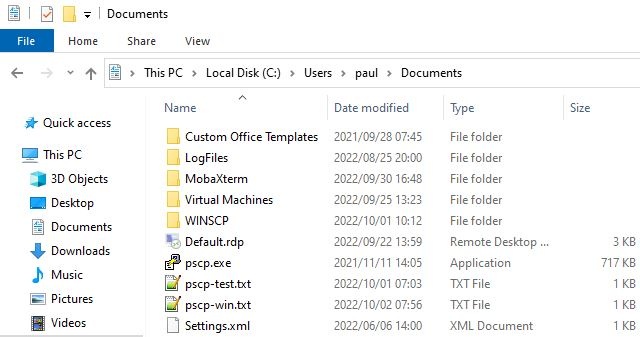
Open your file manager to verify that the pscp-win.txt file was copied to the Windows C:\Users\paul\Documents path from the Linux computer.
(Paul Laubscher, CC BY-SA 4.0)
Remote copying
With the power of the open source pscp command, you have access to any computer in your house, and servers you have accounts on, and even mobile and edge devices.
The open source PSCP utility makes it easy to transfer files and folders between Windows and Linux computers.

Opensource.com
 This work is licensed under a Creative Commons Attribution-Share Alike 4.0 International License.
: Opensource.com Paul
Supporting Open Source.
Have you tried: Visiting Port Elizabeth?