
Open source video captioning on Linux: Open source video captioning on Linux sethkenlon Sat, 02/04/2023 – 03:00
In a perfect world, all videos would have transcripts, and live videos would have captioning. It’s not just a requirement for people without hearing to be able to participate in pop culture and video chats, it’s a luxury for people with hearing who just prefer to read what’s been said. Not all software has captioning built-in though, and some that does relies on third-party cloud services to function. Live Captions is an application for the Linux desktop that provides instant, local, and open source captioning for video.
Install Live Captions
You can install Live Captions as a Flatpak.
If your Linux distribution doesn’t ship with a software center, install it manually from a terminal. First, add the Flathub repository:
$ flatpak remote-add --if-not-exists flathub \ https://flathub.org/repo/flathub.flatpakrepo
Next, install the application:
$ flatpak install flathub net.sapples.LiveCaptions
Launch Live Captions
To start Live Captions, launch it from your application menu.
Alternatively, you can start it from a terminal using the flatpak command:
$ flatpak run net.sapples.LiveCaptions
You can also use a command like Fuzzpak:
$ fuzzpak LiveCaptions
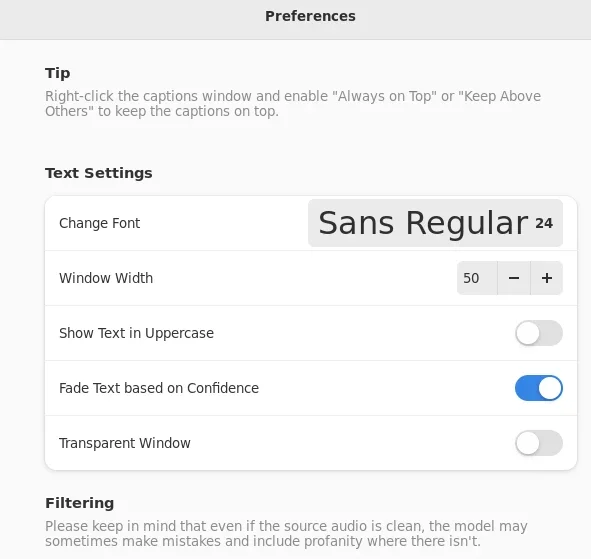
When Live Captions first starts, you’re presented with a configuration screen.
(Seth Kenlon, CC BY-SA 4.0)
You can set the font, font size, colors, and more. By default, text that Live Captions isn’t 100% confident about is presented in a darker color than your chosen font color. If you’re using Live Captions as a convenience, this probably isn’t necessary, but if you can’t hear the video, then it’s good to get an idea of words that may not be correct.
You can return to the preferences screen anytime, so your choices don’t have to be final.
Using Live Captions
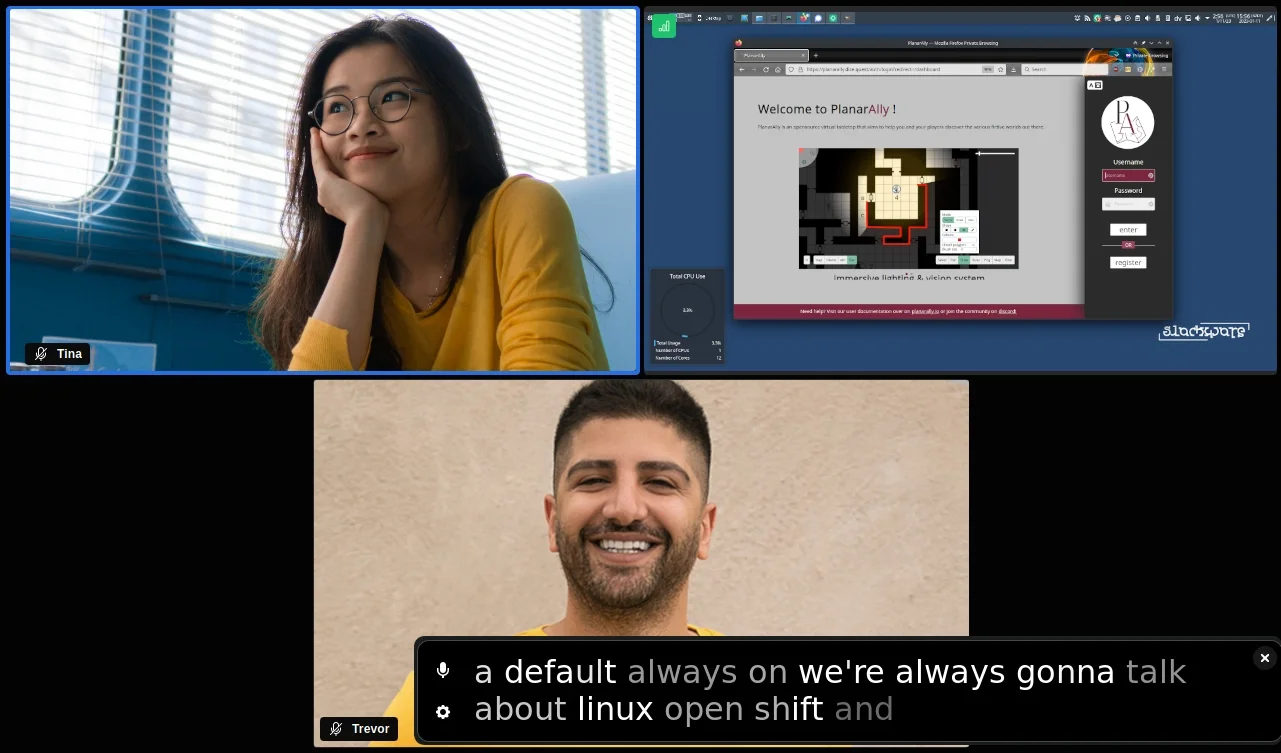
Once Live Captions is running, any English words coming through your system sound are printed to the Live Captions window.
(Seth Kenlon, CC BY-SA 4.0)
This isn’t a cloud service. There are no API keys required. There’s no telemetry or spying and no data collection. In fact, it doesn’t even require network permissions. Live Captions is open source, so there are no proprietary services or libraries in use.
To change the sound input, click the Microphone icon in the top left of the Live Captions window. To open the Preferences window, click on the Gear icon in the bottom left of the Live Captions window.
Open access
In my experience, the results of Live Captions are good. They’re not perfect, but in small Jitsi video calls, it’s excellent. Even with niche videos (rowdy tournaments of Warhammer 40,000, for instance) it does surprisingly well, stumbling over only the most fictional of sci-fi terminology.
Making open source accessible is vital, and in the end it has the potential to benefit everyone. I don’t personally require Live Captions, but I enjoy using it when I don’t feel like listening to a video. I also use it when I want help to focus on something that I might otherwise be distracted away from. Live Captions isn’t just a fun open source project, it’s an important one.
Live Captions is an application for the Linux desktop that provides instant, local, and open source captioning for video.

CC BY 3.0 US Mapbox Uncharted ERG
 This work is licensed under a Creative Commons Attribution-Share Alike 4.0 International License.
: Opensource.com sethkenlon
Supporting Open Source.
Have you tried: Sailing in Africa ?