
My 4 favorite features of the 4pane file manager on Linux: My 4 favorite features of the 4pane file manager on Linux sethkenlon Wed, 12/21/2022 – 03:00
4Pane is a multi-pane file manager for Linux that allows for customized layout, and provides quick access to traditional desktop conveniences as well as common Linux tools. 4Pane aims for speed over visual effects, and places the way you want to work above all else. In honor of its name, I’ve got a list of my four favorite features of this fine file manager.
1. Flexible interface
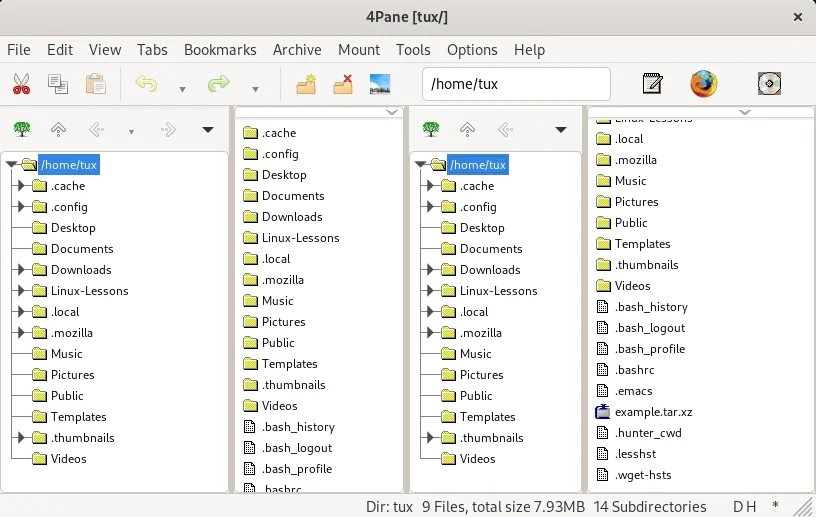
(Seth Kenlon, CC BY-SA 4.0)
The most prominent feature of the 4Pane window is the same as its name: there are four panes in the window by default. In a way, though, there’s actually only two, or said another way, each of the two panes is divided into two columns. The column on the left is a directory tree of your current location (home, by default.) Files are never displayed in the left column. It’s only a directory tree.
The adjacent column displays the contents of the selected directory. When you double-click on a file, it opens in its default application. When you double-click on a directory, that directory is revealed in the left column and the right column displays its contents.
This same model is duplicated in the other window pane.
4Pane only has 4 panes by default, but it doesn’t enforce that view. If you’re overwhelmed by the four-pane view, click on the View menu and select Unsplit panes. This displays just one pane of two columns. It’s a simplified view compared to what’s possible, but it’s a nice place to start while you’re getting used to the column-style for browsing files.
Splitting panes
The advantage of a split view is that you don’t have to open another window to drag and drop a file or folder from one location to another. This isn’t the predominant model for file managers, but it’s a popular subset. 4Pane is one of the few, in my experience, that recognizes that it’s not always convenient to work laterally. If you prefer to have your second pane at the bottom of the window, go to the View menu and select Split panes horizontally (meaning that the split is horizontal, so the panes are situated vertically to one another).
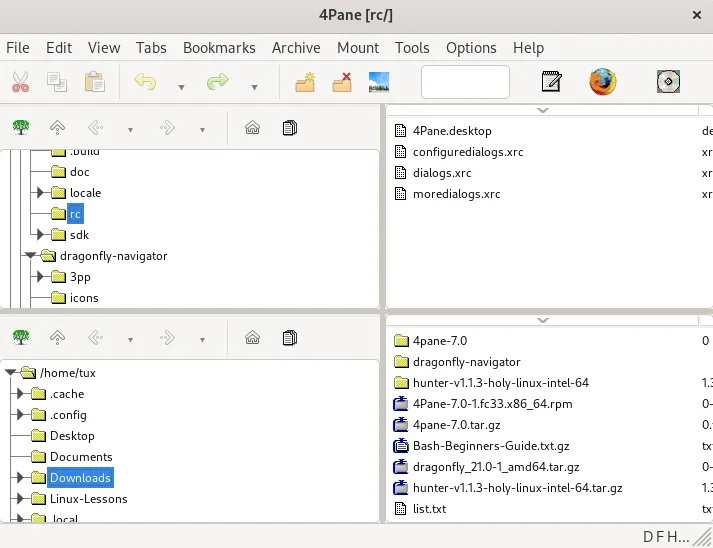
(Seth Kenlon, CC BY-SA 4.0)
2. Tooltip preview
One of my favorite features of 4Pane is the tooltip preview. To activate this, click the photo icon in the top toolbar. With this active, all you have to do is roll your mouse over a file to see a preview of its contents in a tooltip. It may not be a feature you want active all the time. The tooltips can be distracting when you’re just browsing files. However, if you’re looking for something specific or if you’re just not sure exactly what’s in a directory, a quick wave of your mouse to get an overview of the contents of several files is satisfyingly efficient.
3. Menu
The menu bar of 4Pane isn’t quite like most file manager menu bars you may be accustomed to. There’s a menu dedicated to archiving actions, mounting devices, and popular Linux commands such as grep and find.
For instance, in the Archive menu, you can choose to extract an archive or compressed file, create a new archive, add a file to an existing archive, compress a file, and more. I love Ark and similar utilities, but I also recognize how useful it is for a file manager to make those utilities unnecessary. Especially when you’re on an old computer, the fewer applications you have to launch, the better.
Also impressive are the built-in front ends for grep and find. I’ll admit that I probably won’t use it often myself, but I never complain when a developer brings the power of Linux commands to users who aren’t [yet] familiar with the terminal.
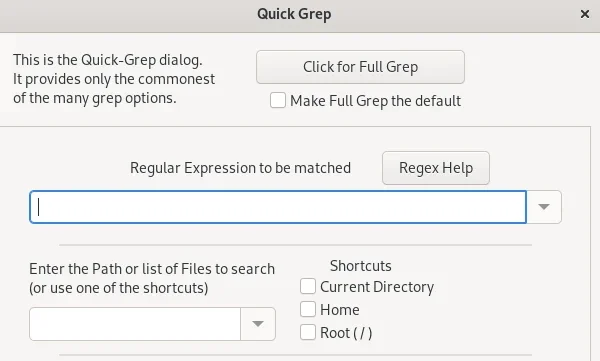
(Seth Kenlon, CC BY-SA 4.0)
The locate front end is probably the most useful of the bunch. It’s fast and effective. There’s just one field in the dialogue box, so it makes a file system search fast.
For example, say you’re searching for the file Zombie-Apocalypse-Plan-B.txt because Plan A fell through, but in the heat of the moment (what with zombies knocking down your door, and all) you can’t remember where you saved it. Go to the Tools menu and select locate. Type zombie in the search field, click the -i box so that your system ignores capitalization, and click OK. This returns both Zombie-Apocalypse-Plan-A.txt and Zombie-Apocalypse-Plan-B.txt.
Maybe that’s good enough for you, or maybe you need a little more precision. In addition to -i for case insensitivity, you can click the -r option to leverage the power of regex. Type zombie.B. to narrow your search to a file starting with zombie and containing the letter B somewhere in the filename.
Effective and fast.
4. Undo
Finally, my (other) very favorite feature of 4pane is the Undo button. When you right click on a file or folder and select Delete, the item is sent to a secret location (it’s not actually secret, but it’s out of sight and out of mind). The item isn’t scrubbed from the hard drive until you close the 4pane window. Up until then, you can always click the Undo button in the top toolbar to reverse decisions you’ve come to regret.
This is a separate action from sending a file to your system trash, so it is meant to masquerade as an actual delete action. The difference is that it’s a delayed delete. That may not suit you. Some users are disciplined enough to send files to the system trash, but others skip the trash. This feature is designed to protect you from yourself by delaying deletion until you close the window. I find it a reasonable and invaluable feature, and it’s the one feature that I’ve already benefited from several times.
Install 4Pane on Linux
If you’re sold on 4Pane, or at least curious about it, then you should install it and try it out! On Linux, your distribution may package 4Pane in its software repository. If so, you can use your package manager to install. For example, on Fedora, Mageia, OpenMandriva, and similar:
$ sudo dnf install 4pane
On Debian and Debian-based systems:
$ sudo apt install 4pane
If your distribution doesn’t carry 4Pane, you can download it from 4pane.co.uk.
Once installed, launch 4Pane from your application menu.
4Pane is a multi-pane file manager for Linux that allows for customized layout, and provides quick access to traditional desktop conveniences as well as common Linux tools.

 This work is licensed under a Creative Commons Attribution-Share Alike 4.0 International License.
: Opensource.com sethkenlon
Supporting Open Source.
Have you tried: Travelling to South Africa?