
3 ways to take screenshots on Linux: 3 ways to take screenshots on Linux Jim Hall Thu, 08/04/2022 – 03:00
When writing about open source software, I prefer to show a few screenshots to help demonstrate what I’m talking about. As the old saying goes, a picture is worth a thousand words. If you can show a thing, that’s often better than merely trying to describe it.
There are a few ways you can take screenshots in Linux. Here are three methods I use to capture screenshots on Linux:
1. GNOME
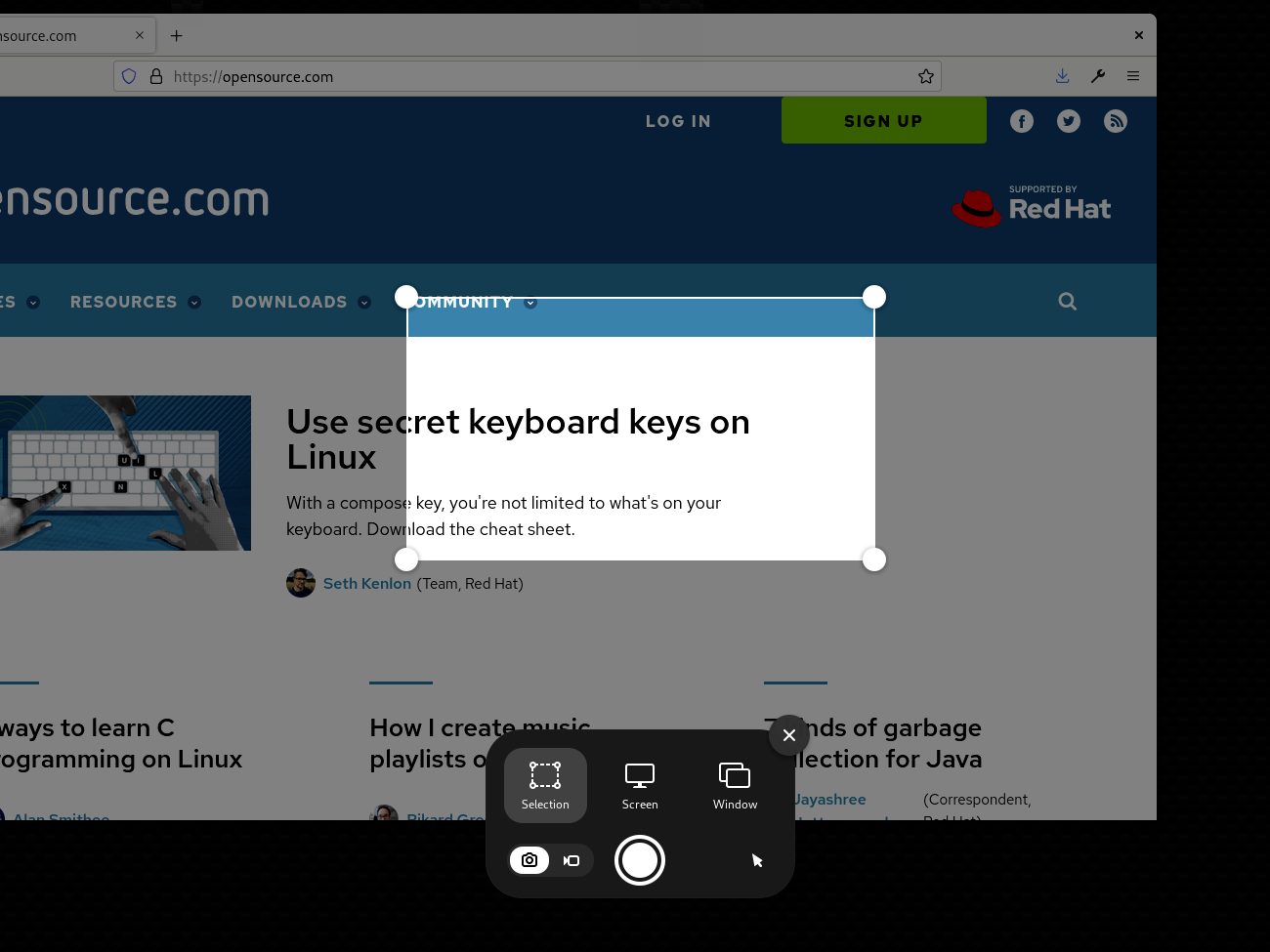
GNOME has a great built-in screenshot tool. Just hit the PrtScr key on your keyboard, and GNOME displays a screenshot dialog:
(Jim Hall, CC BY-SA 40)
The default action is to grab a screenshot of a region. This is an incredibly useful way to crop a screenshot as you make it. Just move the highlight box to where you need it, and use the “grab” corners to change the size. Or select one of the other icons to take a screenshot of the entire screen, or just a single window on your system. Click the circle icon to take the screenshot, similar to the “take photo” button on mobile phones. The GNOME screenshot tool saves screenshots in a Screenshots folder inside your Pictures folder.
2. GIMP
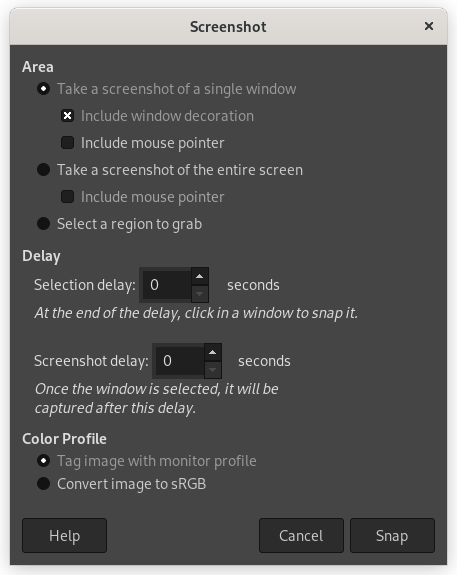
If you need more options for screenshots, you can grab a screenshot using GIMP, the popular image editor. To take a screenshot, go to File and choose the Create submenu, and then choose Screenshot.
(Jim Hall, CC BY-SA 40)
The dialog allows you to take a screenshot of a single window, the entire screen, or just a region. I like that this tool lets you set a delay: how long until you select the window, and how long after that to take the screenshot. I use this feature a lot when I want to grab a screenshot of a menu action, so I have enough time to go to the window and open the menu.
GIMP opens the screenshot as a new image, which you can edit and save to your preferred location.
3. Firefox
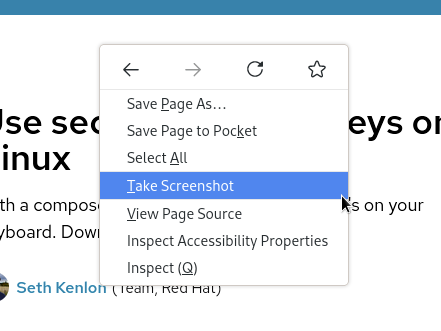
If you need to take a screenshot of a website, try Firefox’s built-in screenshot utility. Right-click anywhere in the web page body, and select Take Screenshot from the menu:
(Jim Hall, CC BY-SA 40)
?
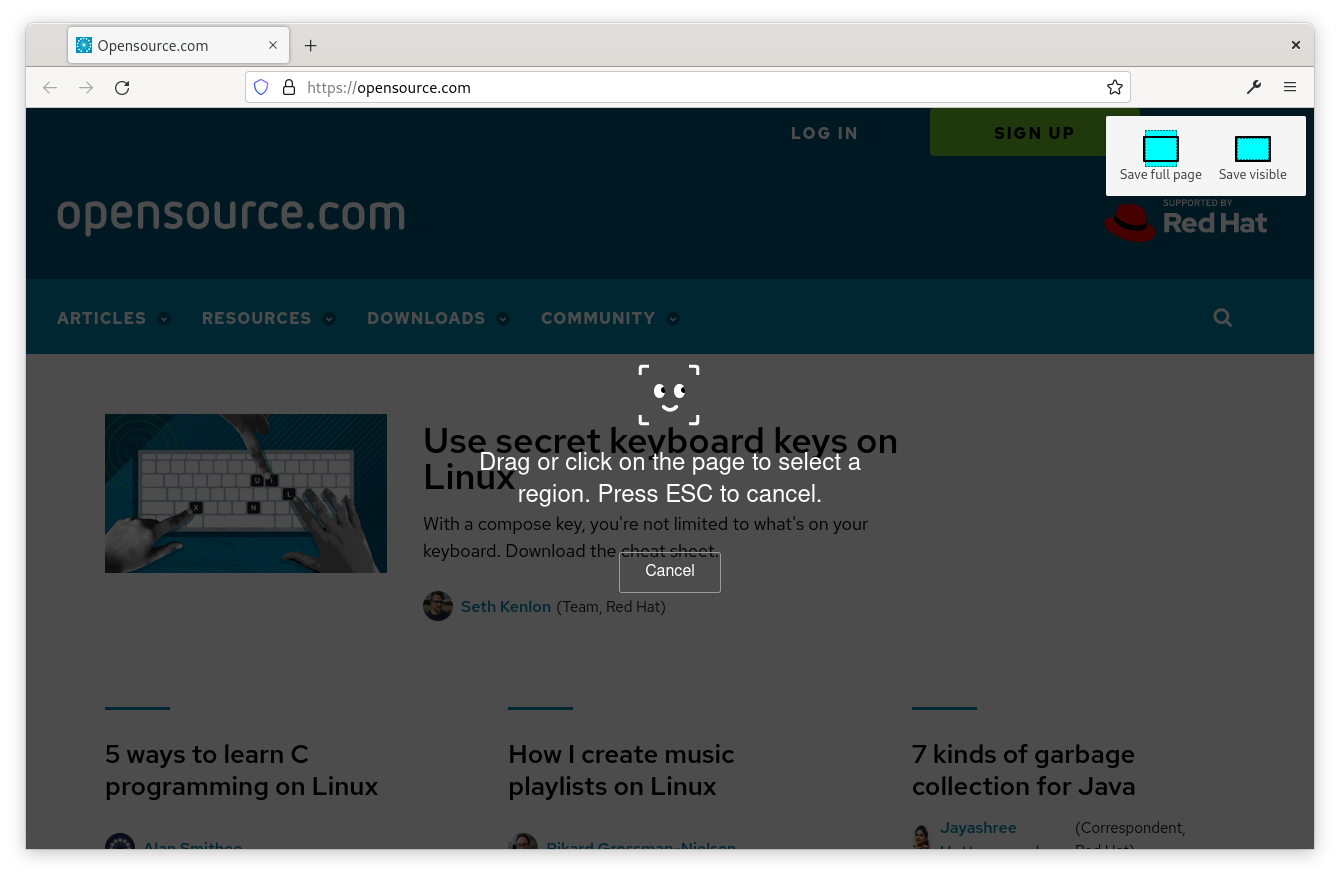
Firefox switches to a modal display and prompts you to click or drag on the page to select a region, or use one of the icons to save a copy of the full page or just what’s visible in the browser:
(Jim Hall, CC BY-SA 40)
As you move your mouse around the screen, you may notice that Firefox highlights certain areas. These are block elements on the page, such as a
If you’re trying to document a process, a screenshot can save you a lot of time. Try using one of these methods to take a screenshot on Linux.
Save time by taking screenshots on Linux with one of my favorite tools.
 This work is licensed under a Creative Commons Attribution-Share Alike 4.0 International License.
: Opensource.com Jim Hall
Supporting Open Source.
Have you tried: Travelling to South Africa?